
Projects3 min read
Give each project its own space
Group related chats and give the assistant reusable instructions for that project.
Use it for
- Plan a small business
- Organise a course or study topic
- Keep an event’s writing tasks together
Inside the app Enlarge
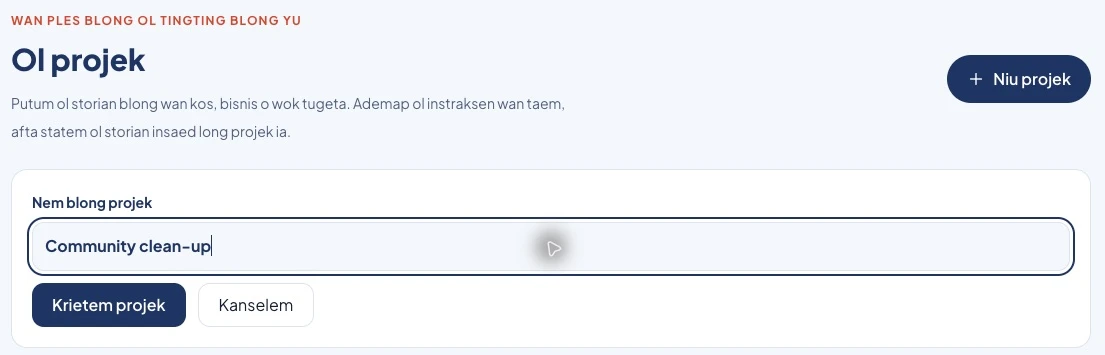
- 1New project: name the task
- 2Project instructions: reusable context
- 3New chat in project: start related work
How to use it
- 1
Create a project
Open Projects, choose New project and enter a short name such as ‘Community clean-up’ or ‘My business plan’.
- 2
Add instructions
Describe the background, audience and style you want used for chats in this project. Save the instructions.
- 3
Work inside it
Use New chat in project, or move an existing chat into the project with the available selector.
- 4
Keep the context accurate
Update instructions when plans change. Each chat receives the project instructions; other chats are not automatically included in its context.
Good to know
- A project groups conversations; it is different from saving a result to Wok.
- Removing a chat from a project keeps it in history. The interface explains what happens before deleting a project.