
Singaot · Call4 min read
Have a live conversation
Speak naturally with an assistant, with optional camera and screen sharing where your plan supports them.
Use it for
- Practise a conversation or interview
- Talk through an idea while your hands are busy
- Get help understanding something you show on camera
Inside the app Enlarge
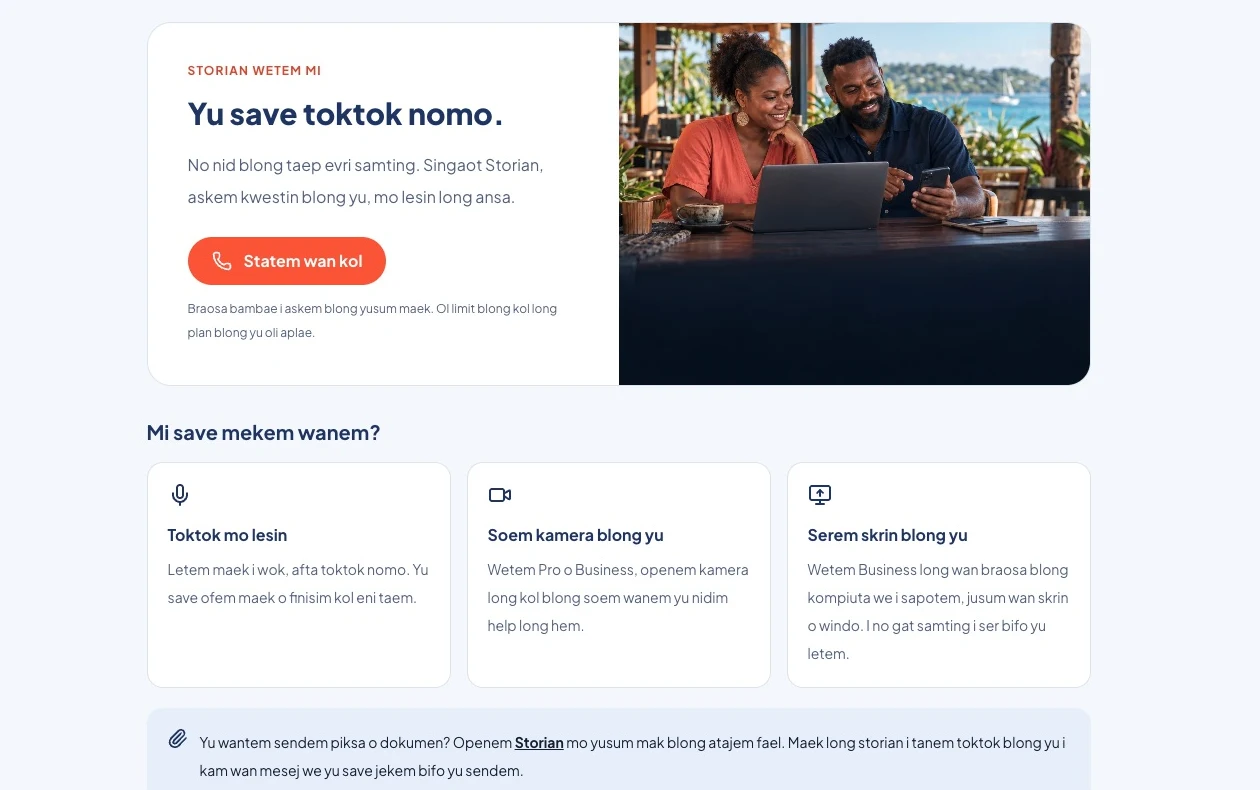
- 1Start a call: choose an assistant
- 2Microphone: mute or speak
- 3End call: finish the session
How to use it
- 1
Choose your assistant
Open Call or press the call button in the workspace. Choose an available assistant and review the call options.
- 2
Allow your microphone
Start when you are ready. Give the browser microphone permission, use headphones if possible, and speak clearly in a quiet place.
- 3
Use optional sharing
Camera sharing requires Pro or Business. Desktop screen sharing requires Business and a supported browser. Only share the window or camera view you intend to show.
- 4
End and keep what you need
Press End call when finished. Where offered, enable live research or opt into an email summary before the call. Summaries depend on available transcript and delivery; check Wok for the saved report.
Good to know
- Chat dictation and a live call are different: a call replies aloud as a conversation.
- Call minutes are metered. Check your allowance and end the call when finished.
- If permission was blocked, use the browser’s site settings to allow the microphone, then retry.
- Share only what you intend. Stop camera or screen sharing before opening private material.