
Work with photos and files
Add context instead of typing everything: a photo, a document or a supported spreadsheet.
Use it for
- Explain the visible text in a notice
- Summarise a document you have permission to use
- Ask questions about a table or spreadsheet
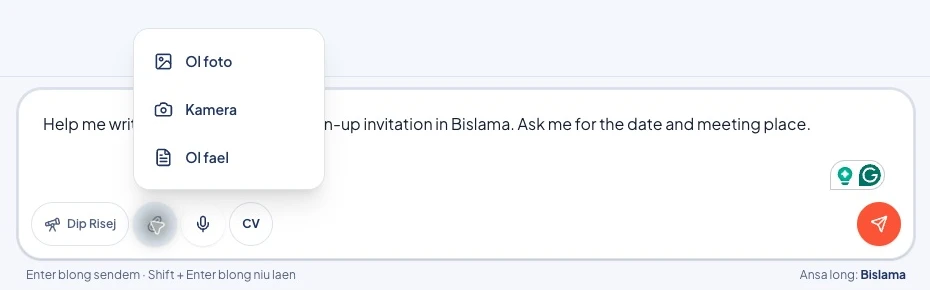
- 1Paperclip: open attachment choices
- 2Photos / Camera: show an image
- 3Files: choose a supported document
How to use it
- 1
Paste or attach
Paste a copied screenshot directly into the message box with Ctrl+V or Command+V, review its preview and add your question. For a document, open the paperclip and choose Photos, Camera or Files. Your phone or browser decides which picker opens. Allow camera access only when you want to take a photo.
- 2
Select and check
Choose the item and wait for it to appear in your draft. Remove any accidental attachment before sending. The picker shows supported file types.
- 3
Ask a specific question
Write what you want done with the attachment: explain, summarise, extract key points or compare figures. Send the message when ready.
- 4
Check the source
Compare important details with the original. Blurry images, large files and complex layouts can lead to incomplete extraction.
Try a request like this
“Summarise this document in Bislama. List the main dates and actions, and tell me if any part is unclear.”
Adapt the names, dates and details before sending. Example requests do not run automatically.
Good to know
- Chat accepts source documents up to 100 MB and photos up to 20 MB, with up to six files per message. Large PDFs use text extraction; review the extraction note for pages/text omitted and scanned content limitations.
- Use a clear, well-lit photo with the whole page visible.
- Only upload material you are allowed to share. Avoid unnecessary personal or confidential information.
- For a long document, ask about a specific section and verify the answer against that section.