
Your first five minutes
Find your way around Storian AI, choose a language and start your first useful task.
Use it for
- Get help with a job application
- Explain a difficult topic in everyday language
- Prepare a message for your community
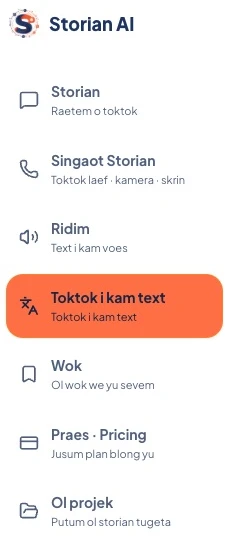
- 1Chat: ask, write and create
- 2Call / Ridim / Transcribe: three different voice tools
- 3Wok and Projects: save and organise
How to use it
- 1
Create your account
Choose Sign up, enter your details and confirm your email using the link sent to you. Then sign in. If you already have an account, use Login.
- 2
Choose the right tool
Use Chat for questions and documents, Call for a spoken conversation, Ridim / Read aloud for an existing script, and Transcribe for speech you want as text.
- 3
Choose your language
The language menu in the workspace header changes the interface between Bislama, English and French. Your reply language is a separate preference in Settings.
- 4
Give one clear task
Say what you need, who it is for and the style you want. Read the result, then ask for a change. You can refine a reply in the same chat.
Try a request like this
“Help me write a short, friendly message in Bislama inviting our community to a clean-up on Saturday. Ask me for any details you need.”
Adapt the names, dates and details before sending. Example requests do not run automatically.
Good to know
- On a phone, open the menu at the top left to find the tools.
- Check Pricing for your current allowance. A paid feature may ask you to upgrade.
- If a verification email is missing, check spam and use the resend option on the login screen.